

Guide
Milky Way 777 Login: Username, Password and Account Access
·
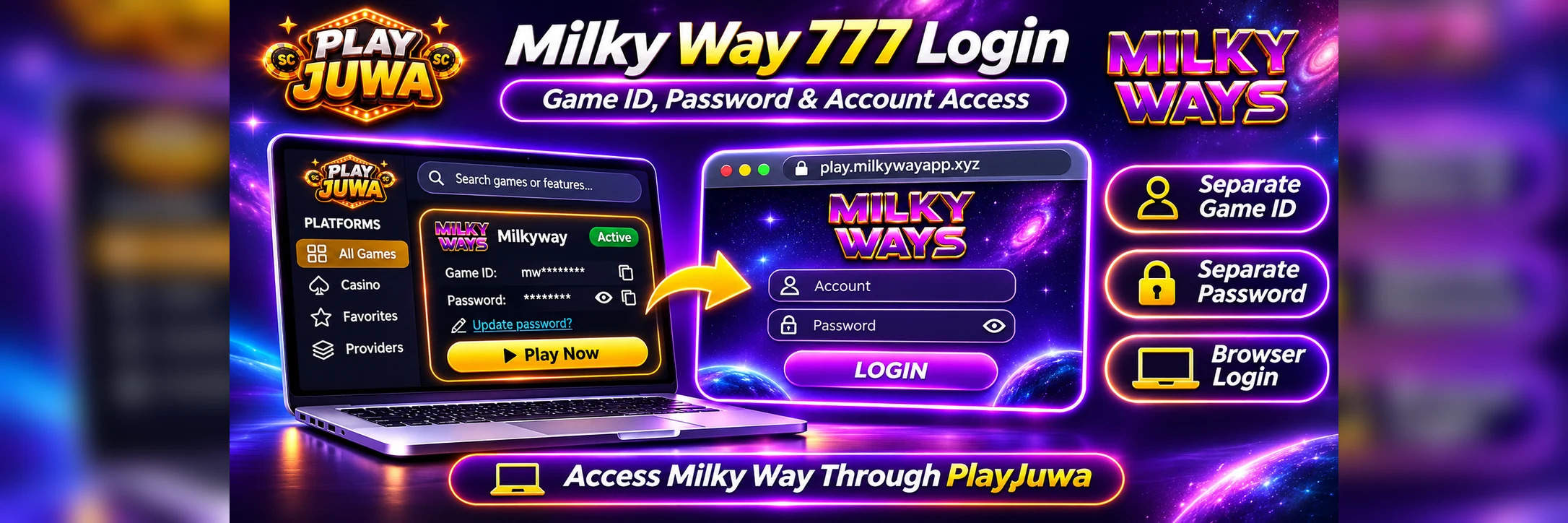
Your Milky Way login is separate from your PlayJuwa login. If you play through PlayJuwa, your Milky Way Game ID and password are shown on the Milkyway card in your PlayJuwa account.
Select Play Now on that card, choose the browser option on the Milky Way page that opens, and sign in with your card’s details — not your PlayJuwa email and password.
Quick answer: Sign in to PlayJuwa, open the Milkyway card and copy the Game ID and password. Select Play Now. This currently opens milkywayapp.xyz. Under Click To Play On Web, select PLAY NOW, then enter your Game ID in the Account field and your password in the Password field. Select LOGIN.
PlayJuwa Login vs Milky Way Login
| Login | What it opens | Details you use |
| PlayJuwa | Your PlayJuwa account, wallet and game cards | Your email or phone number and PlayJuwa password |
| Milky Way | The Milky Way game | The Game ID and password shown on your Milkyway card |
Signing in to one does not sign you in to the other.
A common login problem is mixing up these two sets of credentials.
PlayJuwa lists the game as Milkyway. You may also see it called:
- Milky Way
- Milky Way 777
- Milkyway 777
PlayJuwa is not the Milky Way developer. It provides access to the system through your PlayJuwa account.
Where Do You Find Your Milky Way Username and Password?
Your Milky Way credentials are shown on the Milkyway card in your PlayJuwa account.
- Sign in to PlayJuwa.
- Open Platforms.
- Type “milky” in the search box.
- Open the Milkyway card.
- Find the Game ID and Password.
- Use the copy button next to the Game ID.
- Use the eye icon to reveal the password where needed.
- Use the copy button next to the password.
The Milky Way login screen calls the username field Account.
The Game ID shown on your PlayJuwa card is what you enter in that Account field.
How to Log In to Milky Way 777 Through PlayJuwa
- Sign in to PlayJuwa.
- Open the Milkyway card.
- Copy the Game ID and password shown on the card.
- Select Play Now.
- PlayJuwa currently opens the Milky Way page at milkywayapp.xyz.
- Under Click To Play On Web, select PLAY NOW.
- Enter your Game ID in the Account field.
- Enter the password from your Milkyway card in the Password field.
- Select LOGIN.
Copying and pasting your details can help reduce typing errors, including accidental spaces or confusion between similar-looking characters such as the letter O and the number 0.
Is milkywayapp.xyz the Correct Milky Way Login?
milkywayapp.xyz is the Milky Way page that PlayJuwa’s Play Now currently opens.
Its PLAY NOW option leads to the browser login route on play.milkywayapp.xyz.
For a PlayJuwa user, that makes it part of the current access route.
That does not mean milkywayapp.xyz is a universal login page for every account using the Milky Way name.
Other websites can use similar Milky Way or Milkyway branding while operating different account systems.
For PlayJuwa access:
- open Milky Way from Play Now on your Milkyway card
- use the Game ID shown on that card
- use the password shown on that card
- avoid relying on old bookmarks or search-result pages
What Do the Android and iOS Buttons Do?
The Milky Way page currently shows several access options.
- ANDROID leads to the Android install route.
- IOS_1 and IOS_2 lead to iPhone access or install routes shown on the Milky Way page.
- PLAY NOW opens browser access.
If you prefer browser play, you do not need to use the install options.
PlayJuwa itself does not publish a Milky Way Android or iPhone app. Follow the current route shown after selecting Play Now from your account.
Is Your PlayJuwa Password the Same as Your Milky Way Password?
No.
Your PlayJuwa password is used to sign in to your PlayJuwa account.
Your Milky Way password belongs with the Game ID shown on the Milkyway card.
If your browser autofills your PlayJuwa password on the Milky Way login screen, clear it and use the password from your Milkyway card instead.
Milky Way Player Login vs Backend Login
Search results for Milky Way login can include:
- player login pages
- account-management pages
- back-office panels
- admin interfaces
Backend and admin panels are not player login pages.
As a PlayJuwa user, use the login screen reached through:
PlayJuwa → Milkyway card → Play Now → PLAY NOW
Do not enter your PlayJuwa or Milky Way credentials into an admin or backend page found through search.
Why Is My Milky Way Login Not Working?
Check these common causes in order.
1. Wrong Login Details
Use the Game ID and password from the Milkyway card.
Do not enter your PlayJuwa email address and PlayJuwa password on the Milky Way login screen.
2. Wrong Platform Card
Make sure you copied the credentials from Milkyway rather than another platform card.
Each platform can have its own Game ID and password.
3. Typing Errors
Copy and paste the credentials again.
Check for:
- accidental spaces
- differences in capitalization
- confusion between similar characters
4. Wrong Login Page
Open Milky Way through Play Now on the Milkyway card.
Avoid using an old bookmark, search result or forwarded link.
5. Password Was Updated
If you changed the Milky Way password, use the current password associated with the card.
6. Browser or Session Problem
Close the Milky Way tab and reopen it through Play Now.
If needed:
- reload PlayJuwa
- sign out and sign back in
- try another current browser
If the login still does not work, contact PlayJuwa through live chat, email support@playjuwa.com, or use the PlayJuwa Help Center.
Include your device, browser and exact error message.
Never send your password.
What If You Forgot Your Milky Way Password?
Open the Milkyway card in your PlayJuwa account.
The current card shows the password and allows you to reveal it using the eye icon.
If you need to change the password, select Update password? on the Milkyway card.
The Milky Way browser login screen also currently shows a Forgot password? option.
For credentials issued through PlayJuwa, use the password-management option shown on your PlayJuwa Milkyway card or contact PlayJuwa support if you need help.
Avoid password-reset pages found through unfamiliar search results or social-media messages.
What If Your Milky Way Game ID Is Missing?
Try these steps:
- make sure you are signed in to the correct PlayJuwa account
- open Platforms
- type “milky” in the platform search box
- open the Milkyway card
- check the status shown on the card
- reload the PlayJuwa page
- sign out and sign back in if needed
If the Game ID still does not appear, contact PlayJuwa support.
Do not:
- use a Game ID posted on another website
- buy a login from someone
- borrow another person’s account details
Has the Milky Way Login Website Changed?
Milky Way-branded pages can appear under different web addresses.
Those addresses may change or belong to different account systems.
For that reason, open Milky Way from Play Now on the Milkyway card rather than relying on an old bookmark.
Play Now uses the route currently configured for your PlayJuwa access.
Can You Log In to Milky Way on Mobile?
Yes.
- Open PlayJuwa in your phone’s browser.
- Sign in to your account.
- Open the Milkyway card.
- Select Play Now.
- Select PLAY NOW under the browser option on the Milky Way page.
- Enter the Game ID and password from your card.
- Select LOGIN.
The browser route can be used without installing an app.
How to Avoid the Wrong Milky Way Login Page
Use these checks:
- Start from your PlayJuwa account rather than a search result, advertisement or forwarded link.
- Open Milky Way using Play Now on your Milkyway card.
- Do not assume the words “official” or “777” in a domain prove who operates it.
- Never enter your PlayJuwa password on a Milky Way login page.
- Never share your Game ID, password or one-time codes through social media or messages.
- Do not pay anyone for login details, account unlocks or password changes.
- Avoid “hack,” “mod” and “free credit” pages.
If you entered your Milky Way Game ID or password on a suspicious page, use Update password? on your Milkyway card and contact PlayJuwa support.
If you also entered your PlayJuwa password on that page, change your PlayJuwa password as well.
Does a Working Login Mean You’re Eligible?
No.
A working Milky Way login does not change PlayJuwa’s eligibility requirements.
You must:
- be at least 18, or older where applicable law requires a higher minimum age
- be in an eligible location
- comply with account and location requirements
- not use a VPN, proxy or location-spoofing method to bypass geographic restrictions
See the current PlayJuwa Terms and Conditions.
Frequently Asked Questions About Milky Way 777 Login
How Do I Log In to Milky Way 777 Through PlayJuwa?
Sign in to PlayJuwa, open the Milkyway card and copy the Game ID and password.
Select Play Now, choose PLAY NOW on the Milky Way page, enter the Game ID in the Account field and the password in the Password field, then select LOGIN.
Where Do I Find My Milky Way Username?
It is shown on the Milkyway card in your PlayJuwa account as the Game ID.
Milky Way’s login screen labels this field Account.
Is My PlayJuwa Password the Same as My Milky Way Password?
No.
Your PlayJuwa password opens your PlayJuwa account.
Your Milky Way password is the separate password shown on your Milkyway card.
Is milkywayapp.xyz the Correct Login?
It is the page that PlayJuwa’s Play Now currently opens.
Open it through your Milkyway card, choose PLAY NOW, and sign in using the Game ID and password from that card.
Why Is My Milky Way Login Not Working?
Common causes include using your PlayJuwa credentials, copying details from the wrong card, typing errors, using an old link or using an outdated password.
Copy the credentials again and reopen Milky Way through Play Now on your card.
How Do I Reset My Milky Way Password?
Use Update password? on the Milkyway card in your PlayJuwa account.
If that does not resolve the problem, contact PlayJuwa support.
Is Milky Way Backend Login for Players?
No.
Backend and admin panels are account-management interfaces rather than the player login route.
Players should use the login page reached through PLAY NOW from the Milky Way page opened by their PlayJuwa card.
Has the Milky Way Login URL Changed?
Milky Way pages can appear under different web addresses, and routes can change.
Open Milky Way through Play Now on your card each time rather than relying on an old bookmark.
Can I Log In to Milky Way on My Phone?
Yes.
Open PlayJuwa in your phone’s browser, select Play Now on the Milkyway card, choose PLAY NOW on the Milky Way page, and enter the credentials shown on your card.
Summary
Your Milky Way login is separate from your PlayJuwa login.
Sign in to PlayJuwa, open the Milkyway card and copy the Game ID and password.
Select Play Now, choose PLAY NOW on the Milky Way page, and enter:
- your Game ID in Account
- your Milky Way password in Password
If login access fails, recheck the credentials and route first. For password help, use Update password? on the card or contact PlayJuwa support.
For more information, see Milky Way on PlayJuwa or our guide to fish table games.
No purchase necessary. 18+ only. Void where prohibited. Play for entertainment and within your limits. Terms and Conditions apply.